| WS_FTP Pro Tutorials | |
| WS_FTP Pro Features | |
Click the Cancel button on the Connect to Remote Host dialog to return to the main WS_FTP Pro window.
The WS_FTP Pro main window is where most tasks are performed. It is laid out so you will always know where you are in both your local system and the emote system you are connected to.
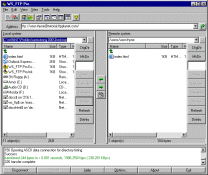
The various features on this window are detailed in the WS_FTP Pro Help system, so we will not cover all of them here. For this tour, we will focus on the most common features you are likely to use each time you use the application.
In the center of the WS_FTP Pro window you will see that the window is divided into two 'panes,' the Local System pane and the Remote System pane. These panes are used to show you where you are on the systems, and what is contained in the directory you are located in.
The Local System pane shows folders on your computer, while the Remote System pane shows you the folders on the FTP site you are connected to. If you are not connected to an FTP site, the Remote System will be empty.
Click the Go button below to continue.

|

|

|